
This guide will walk you through the process of creating a polished demo video using tools like Google Slides and iMovie. You'll be combining pre-made demo content with a custom intro and voiceover.
✅ What You’ll Need
- Access to the [Vim Demo Library]
- Google Slides (via your Vim Google Workspace)
- iMovie (Mac users)
- Stock music file (🎵here)
For voiceovers, either:
- ElevenLabs.io account, or
- Microphone for voice recording
⏯️ Step 1: Download Relevant Demo(s)
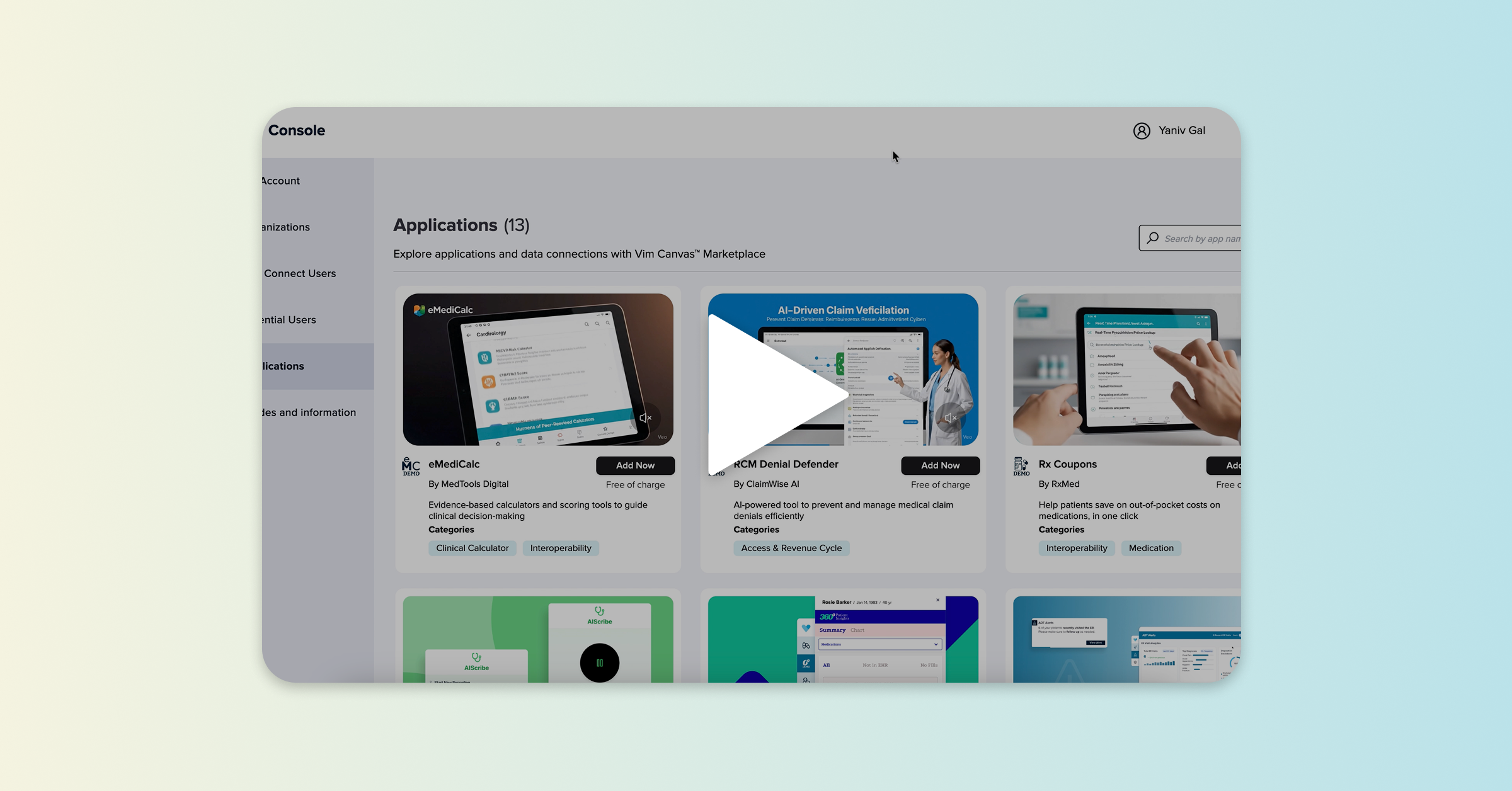
- Go to the [Vim Demo Library] and locate the out-of-the-box demo(s) relevant to your use case.
- Click to download the demo video files from Vimeo (usually in .mp4 format).
- Save them in a local folder for easy access later.
Tip: Download multiple demos if you plan to showcase different features or workflows in one video.
🎨 Step 2: Create the Custom Intro Slide
- Use Google Slides to create an opening graphic for your demo.
- Here is a template you can use to show the Vim logo and requesting company’s logo side by side.
- Go to File → Download → PNG to export the slide as an image.
Best Practice: Use Vim brand colors and fonts for consistency. You can find all of our brand assets in the Brand Package.
🎬 Step 3: Open iMovie and Assemble the Timeline
- Open iMovie (which should already be loaded onto your Mac) and create a New Movie project.
- Drag in the following assets in this order:
- Intro slide image (from Step 2)
- Demo video(s) (from Step 1)
- Closing slide (use this or upload your own)
- Adjust the timing:
- Set the intro and closing slides to display for 3–5 seconds.
- Trim the demo clips if needed.
Optional: Add “fade to black” transitions between clips.
🎵 Step 4: Add Music
- Download the approved background track from this link: Here
- Drag the music file into iMovie’s audio timeline.
- Lower the music volume to ~10% so it doesn't overpower the voiceover.
Tip: Preview the video at this stage to check pacing and transitions.
🎤 Step 5: Add a Voiceover
Option A: Record Your Own
- Navigate to Window → Record Voiceover in iMovie to record narration directly.
- Speak clearly and follow a script if you have one.
- Adjust the audio levels after recording.
Option B: Use ElevenLabs.io (AI Voiceover)
- Go to https://www.elevenlabs.io and log in.
- Paste your script and select a voice (Matilda is recommended).
- Download the generated voiceover file.
- Import it into iMovie and align it with the demo visuals.
✅ Final Steps
- Watch the full video to ensure:
- Slide timing feels natural
- Music is balanced with voiceover
- No misspeaks or awkward cuts
- Export the video:
- Navigate to the export button in the top right of iMovie. Select “Export File”
- Choose 1080p resolution (or whatever is highest) and export as .mp4
- Save the final video in the appropriate shared folder or upload to Vimeo or Youtube.